
Free to locally connect, paid for service for remote access, but not painfully priced, that will let you connect to remote RPi’s via the desktop without needing to configure the local router to allow incoming connections.
https://www.realvnc.com/en/raspberrypi/
Setup on the RPi
RealVNC Server is included with Raspberry Pi OS.
Start > Preferences > Raspberry Pi Configuration > Interfaces > VNC = On
You should then get the RealVNC server icon in your top bar (next to the Bluetooth icon). Open it
Press the hamburger menu button (3 lines) > Licencing > Enter your RealVNC account username and password
Press Next (Leave allow cloud and direct connections checked)
Press Next (UNIX password and Encryption always on selected)
Press Next (Administrators can connect selected)
Enter a name for this system (how it will appear in the Real VNC portal)
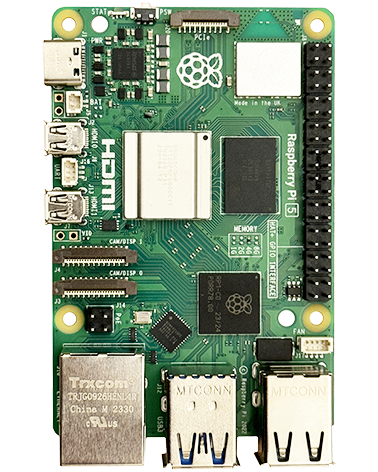
RPi5 special note – see below
Running on devices without a keyboard and mouse connected
You will need to install another entropy generator such as haveged, which you can install by running this command:
sudo apt install havegedRunning on devices with no monitor connected
You need to set a resolution that the RPi will use when there is no monitor connected:
sudo raspi-configDisplay options > VNC resolution
RPi5 issue late 2023
There’s an issue with RealVNC support for the default Raspberry Pi OS currently, to be resolved – details here.
You must be running the 64bit OS (shown on the startup splash screen).
First ensure that VNC is turned off in Start > Preferences > Raspberry Pi Configuration > Interfaces
On the command line run
sudo raspi-configAdvanced Options > Wayland > Select X11 instead of the default Bookworm.
After your RPi reboots you will now be able to turn on VNC and see RealVNC run/appear.
Updating version
If you manually need to update RealVNC server on a RPi (e.g. to ensure it is running min V7.13.1 to solve locked up concurrent session state), you can do the following:
Download RealVNC Server from: https://www.realvnc.com/en/connect/download/vnc/?lai_vid=rAO8JaNQxClE9&lai_sr=20-24&lai_sl=l
Select arm64 for 64bit RPi OS
You can confirm you are running 64bit using these on the command line:
sudo apt install lshw
sudo lshw | head -6
Right click the downloaded “VNC-Server-7.13.1-Linux-ARM64.deb” file > Package Install
Alternatively you can use the below command:
sudo apt install ./VNC-Server-7.13.1-Linux-ARM64.deb
Once complete, reboot the RPi
Changing RealVNC server identity
If you have signed into your RealVNC account on a RPi and then cloned the RPi SD card, the server identity is copied causing a clash with the RPi using the original SD card if both are used at the same time. There appears to be no feature currently in RealVNC server to get it to regenerate its server ID, or even log out of your RealVNC account. If you rename it in RealVNC viewer it will make no difference, it just changes the name shown in viewer.
Changing server identity
You’ll need to do this locally with the RPi, although you can do it over a local RealVNC connection if your RPi is headless.
Get the IP address of your RPi on the local network so you’ll be able to connect to it again.
Open command prompt and run this command to delete all the files RealVNC server uses as its cloud server ID (you’ll immediately loose your RealVNC connection to it):
sudo rm -rf /root/.vnc /home/pi/.vnc /etc/vnc /var/lib/realvnc && sudo rebootWait for it to have rebooted and then connect to it again using a local RealVNC viewer connection with its IP address.
You can now re-log it into your RealVNC account using RealVNC menu > Licencing > Next
Give it your RealVNC login details and follow the steps, giving it a new name you’ll then see it as in your RealVNC viewer.